
 |
|
|
|
|
|
|
|
|
|
|
|
|
|
 |
|
||||||||||||
 |
 |
 |
|
||||||||||
 |
|
||||||||||||
 |
 |
 |
|
||||||||||
 |
|
||||||||||||
 |
 |
 |
|
||||||||||
 |
|
||||||||||||
 |
 |
 |
|
||||||||||
 |
|
||||||||||||
 |
 |
 |
|
||||||||||
 |
|
||||||||||||
 |
 |
 |
|
||||||||||
 |
|
||||||||||||
Instructions: Page 14
Choosing your Style Sheet
Once all of the content has been added to your ePortfolio and you have saved all of your changes, you can finally start implementing some style changes. Since the template uses Style Sheets to implement style information, you need to change the Style Sheet to change the overall look of the ePortfolio. To change the Style Sheet for any of your html documents, all that you need to do is change one line of html code:
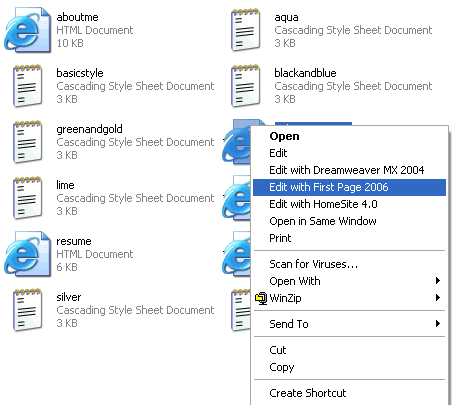
- Open your ePortfolio folder on your desktop.
- Right-click on the index page and select Edit with First Page 2006.
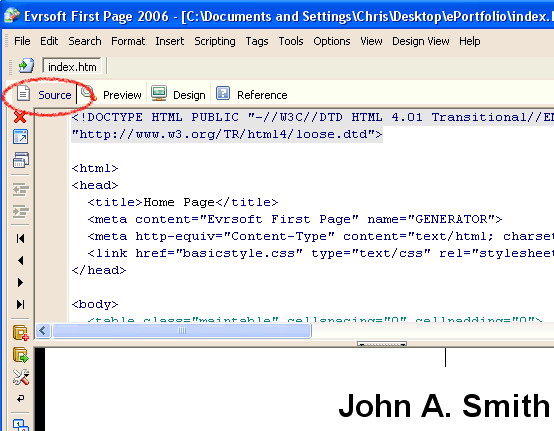
- When the file opens, click on the Source tab near the top of the page.
- In the top half of the page, you should see the html code. Look near the top of the document.
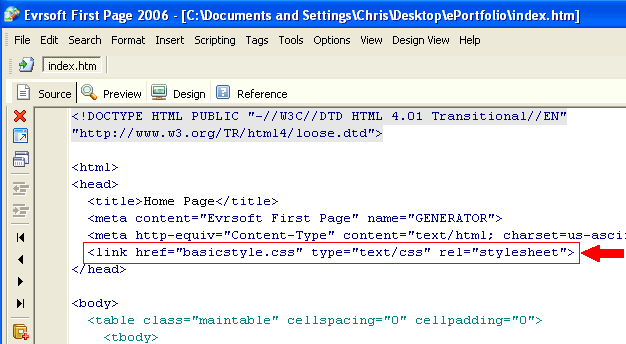
You should see a line of code in the head of the document that looks like this:
link href="basicstyle.css" type="text/css" rel="stylesheet"
The first and last sections of this line of code simply tell the Web browser what kind of file the page is linked to; we are only interested in the middle section of code:
href="basicstyle.css"
This line tells the browser which specific css file we are drawing our style information from. In order to switch style sheets, all that we have to do is change the name of the file "basicstyle.css" (the default Style Sheet for your ePortfolio html files).
- Look inside of your ePortfolio folder on your desktop.
- Take a look at all of the files that end in .css – these are all of your Style Sheet files.
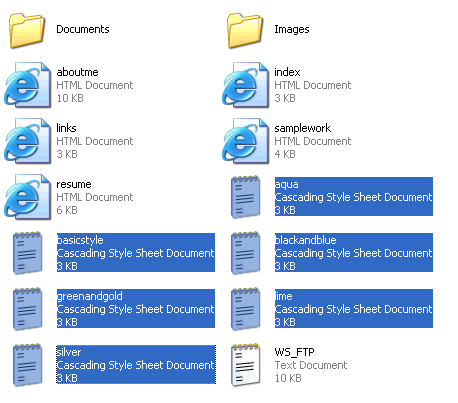
Let′s try replacing the basicstyle.css file with one of the other Style sheets available: the blackandblue.css file. To do this:
- Go back into First Page, where you should have your index file open and the Source tab clicked.
- Find the line of code that we mentioned earlier:
href="basicstyle.css"
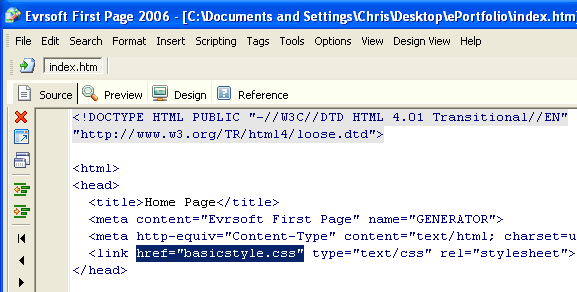
- Now replace the basicstyle.css file with the blackandblue.css file so that the code looks like this:
href="blackandblue.css"
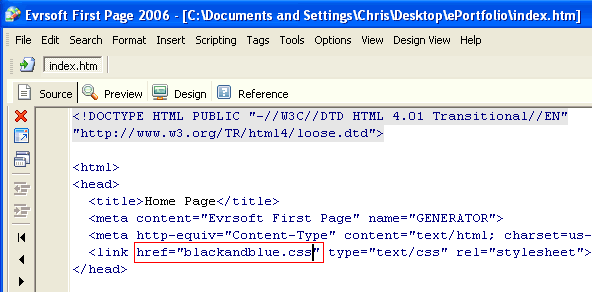
- When you are done, the line of code in your html file should now look like this:
link href="blackandblue.css" type="text/css" rel="stylesheet" - Save your index file by clicking on the File menu and selecting Save.
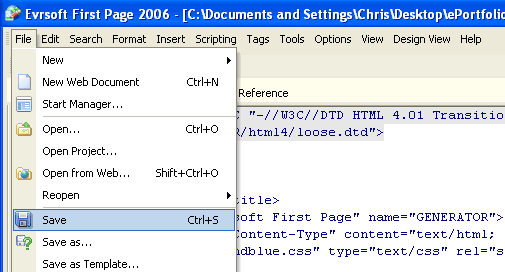
- To preview the style changes, go back to your ePortfolio folder and double-click on your index file.
- Your index html file should load in your default browser, where you can preview the style changes.
Take a look at the differences in color and style now that you have loaded a new Style Sheet! Try loading some of the other Style Sheets until you find one that you want to use with your ePortfolio. Once you find the Style Sheet that you want, you should make sure that ALL of your ePortfolio pages are linked to it. To do this, make sure that you make all of the previous Style Sheet changes to each of the html files in your ePortfolio folder. Make sure that you check the html code at the top of each page to ensure the correct Style Sheet has been loaded in ALL of them. Remember, each page must be referenced to the correct style sheet or it will appear drastically different in style and presentation than the rest of your pages!
 |
Page | 11 | 12 | 13 | 14 | 15 |  |
 |