
 |
|
|
|
|
|
|
|
|
|
|
|
|
|
 |
|
||||||||||||
 |
 |
 |
|
||||||||||
 |
|
||||||||||||
 |
 |
 |
|
||||||||||
 |
|
||||||||||||
 |
 |
 |
|
||||||||||
 |
|
||||||||||||
 |
 |
 |
|
||||||||||
 |
|
||||||||||||
 |
 |
 |
|
||||||||||
 |
|
||||||||||||
 |
 |
 |
|
||||||||||
 |
|
||||||||||||
Instructions: Page 10
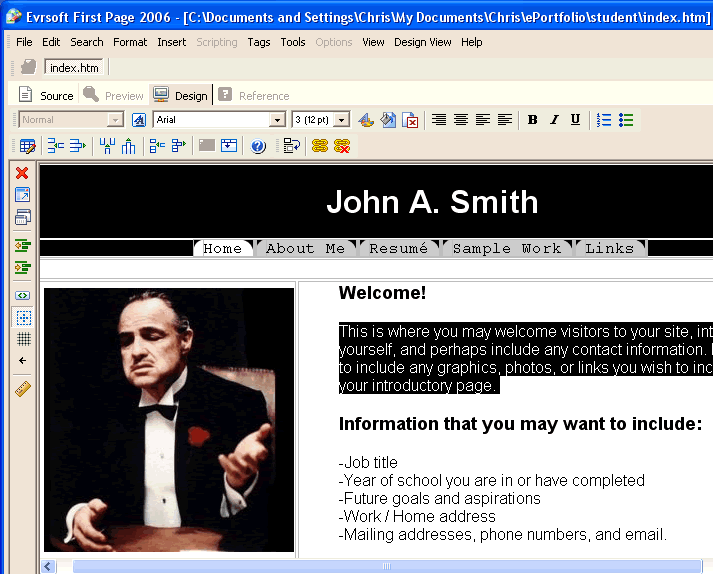
The page will now load in a design format where you can simply select text to modify it. Since this is a template, all of the menu items are already set up to go to their own pages (please do NOT try to modify or add menu items!), so all that you have to do is add your name at the top of the page and enter your own information and picture in the content section of the page. To add your own words and content:
- Highlight the template text, delete it, and type in your own information.
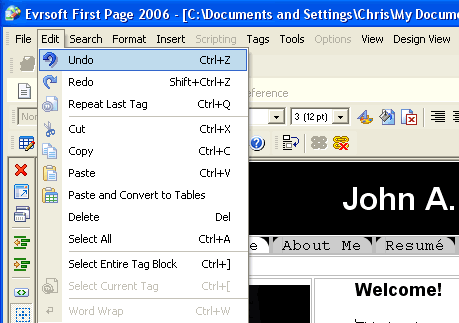
- If you ever make a mistake, go to the Edit menu and select Undo.
WARNING!
DO NOT try and edit ANY of the style information on your ePortfolio! Do not try to change the font, size, colour, background, or design of the template or the writing in any way. This template was created using a Style Sheet, and thus any style information that you try to include my cause problems with the programming. Rest assured that you WILL get a chance to change the style information on your ePortfolio, but for now all that you need to do is enter the content information into the template.
Adding your own pictures and files
Before you can add your own pictures and documents to your Web pages, you need to transfer the files to their corresponding folders within your ePortfolio folder. By copying all of the files into your ePortfolio folder, you will ensure that all of your documents and images will remain intact when you put your ePortfolio on your Web space.
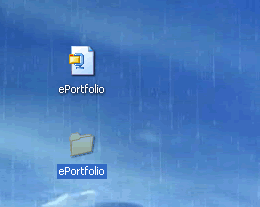
- Go to your desktop and open your ePortfolio folder.
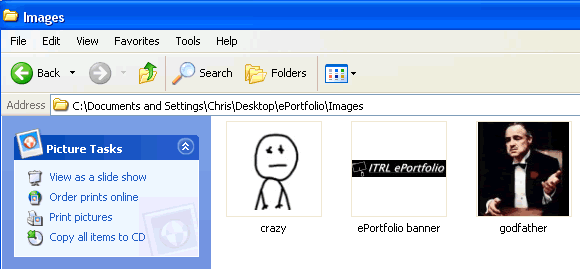
- To save images, open the Images folder. Copy any images that you intend to use into this folder.
- To save documents, open the Documents folder. Copy any documents (ie. writing samples, pdf versions of your resume, photocopied scholarships, electronic CV′s etc) into this folder.
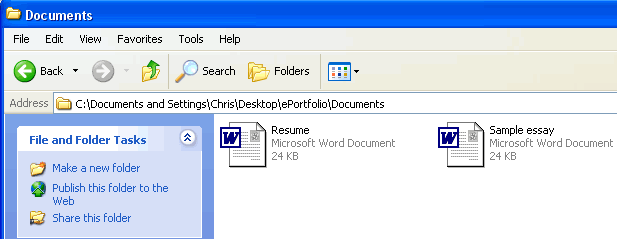
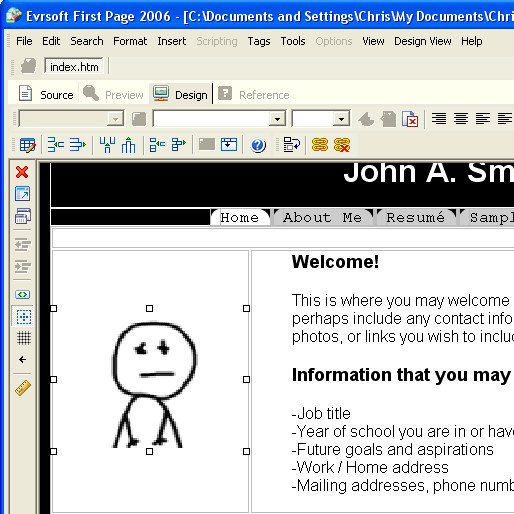
Once you have an image saved in your Images folder, you can actually add the image to your Web page. Since we have the index page open in First Page, let′s try to replace the image of Don Corleone with one of your own images:
- In First Page, with the index page open, click on the image of Don Corleone and press Delete.
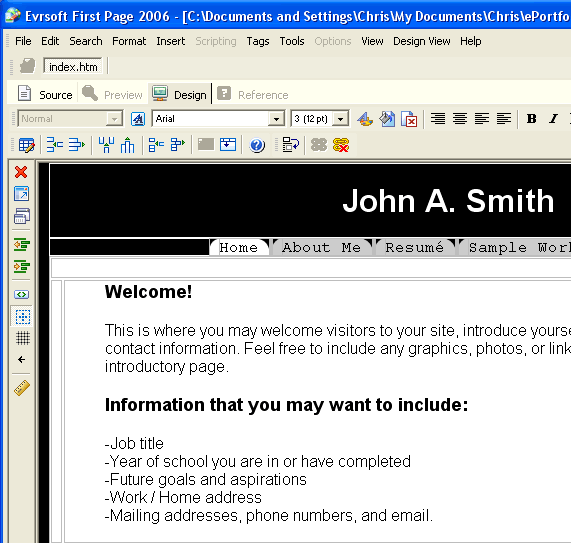
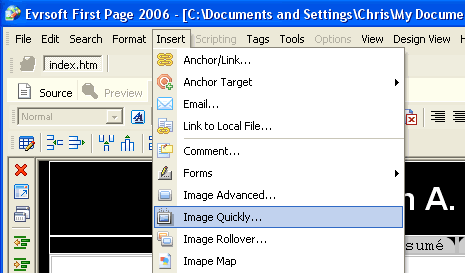
- Without clicking anywhere else, go to the top of the page to the Insert menu.
- Select Image Quickly.
- Browse for the image you want to place on the page. It should be inside of the Images folder in your ePortfolio folder on the Desktop.
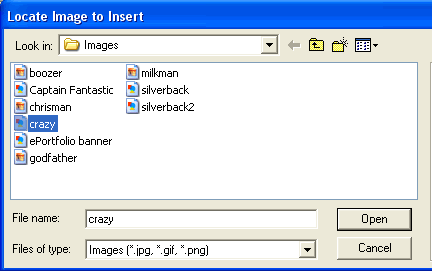
- Select the image file and click Open.
- If you need to resize the image, you can do so before you even load the file or right in First Page by clicking on the image and dragging the corners.
 |
Page | 1 | 2 | 3 | 4 | 5 | 6 | 7 | 8 | 9 | 10 |  |
 |