 |
|
|
|
|
|
|
|
|
|
|
|
|
|
 |
|
||||||||||||
 |
 |
 |
|
||||||||||
 |
|
||||||||||||
 |
 |
 |
|
||||||||||
 |
|
||||||||||||
 |
 |
 |
|
||||||||||
 |
|
||||||||||||
 |
 |
 |
|
||||||||||
 |
|
||||||||||||
 |
 |
 |
|
||||||||||
 |
|
||||||||||||
 |
 |
 |
|
||||||||||
 |
|
||||||||||||
Instructions: Page 9
Using First Page to Edit the ePortfolio Template
Once you have downloaded First Page, you can go ahead and open one of the template files and begin modifying the content:
- Go to your Desktop and open your ePortfolio folder that you downloaded earlier.
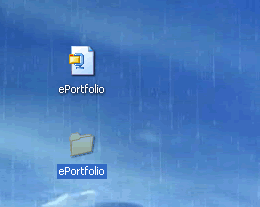
- Find the file called index. Right-click on this file and select Edit with First Page 2006.
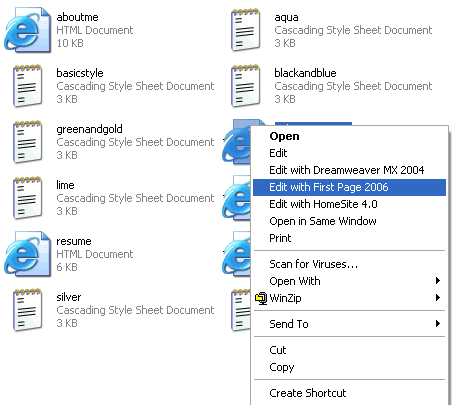
This should load the main page of the ePortfolio template in First Page.
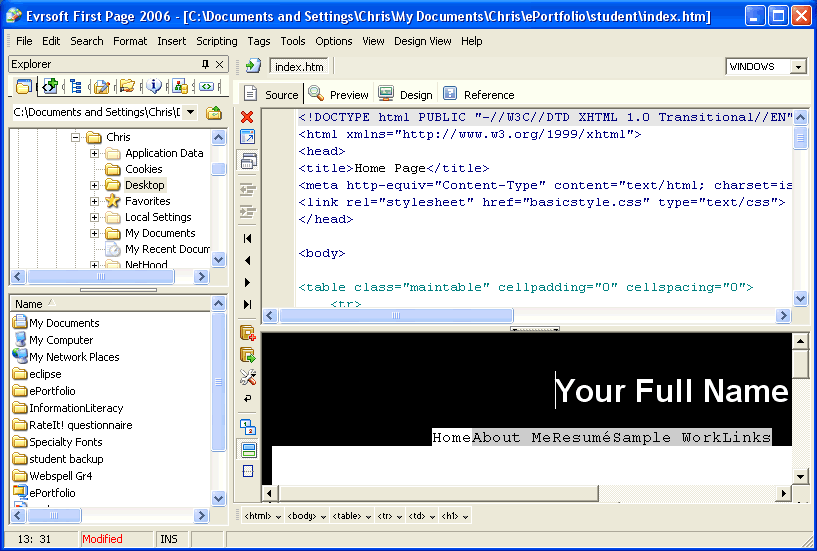
The page should be divided into 4 main screens. The two sections on the left side of the page are where you can browse for and open your html files. The right side of the screen contains the html source code for the current page. For now, let′s get rid of the screens on the left (if you do not have these screens, you can ignore this step):
- Select the View menu at the top of the screen.
- Pull down the menu and make sure that the View Side Panels option is unselected.
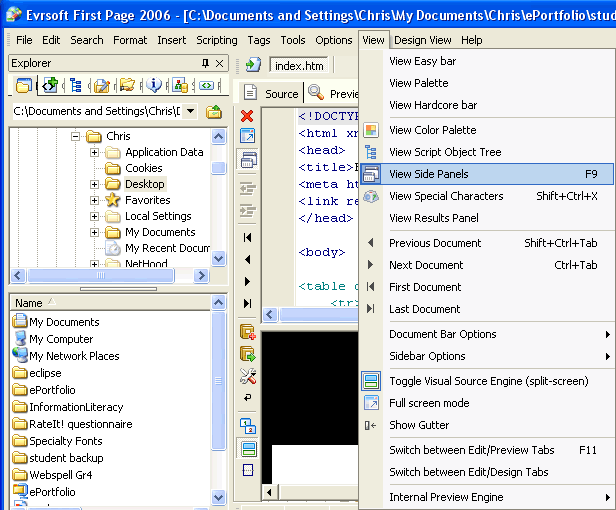
- Once you do this, the side panels on the left should disappear and leave you with two horizontal screens divided in the middle.
- You should see programming code (this is html!) in the top part of the screen, and on the bottom of the screen you should see a preview version of your Web page.

Take a look at the top of the html code section; you should see 4 tabs called Source, Preview, Design, and Reference.
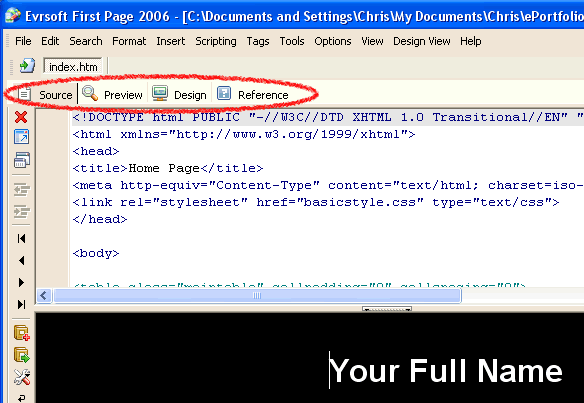
We are now viewing the Web page under the Source view, which means we are viewing the html source code for the Web page. The bottom part of the screen is only a PREVIEW and any changes that we make to it will be through editing the html code, so you should NOT try editing the Web page from this screen unless you have experience with html code. Instead, lets click on the Design tab to open up a WYSIWYG(what you see is what you get) mode that will allow you to quickly and easily change the content of your ePortfolio:
- Click on the Design tab near the top of the page.
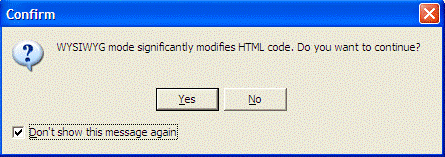
- A warning stating that "WYSIWYG mode significantly modifies html code" will appear.
- Click the box at the bottom to make sure that the message doesn′t appear again.
- Select Yes to proceed.
 |
Page | 1 | 2 | 3 | 4 | 5 | 6 | 7 | 8 | 9 | 10 |  |
 |